dm16
1. Download SPLat Firmware
A DIN-rail-mounted 16 I/O device designed to operate mostly as a SEXI slave.

=================
== Version 4.4 ==
=================
25 June 2020
- Simplified SPLat code to single version.

=================
== Version 4.3 ==
=================
28 April 2020
- Restored 1806 and 1808 to the same I/O map and Xwire signals.
- Re-built both variants with current system changes, including NVEM3.
- Removed Quadrature initialisation from 1806 variant so analog output 0 could work.

==============================
== Version 4.3 (unreleased) ==
==============================
25 October 2019 (never released, never tagged)
- Work in progress on extended outputs for 1808 version, not working

=================
== Version 4.2 ==
=================
16 April 2019
- First pass of 1808 version.

=================
== Version 4.1 ==
=================
25Oct2018
- DM16: can now drive outputs 7, 8, 9 as either digital or analogue
- VM: added generic module for driving outputs as either analogue or digital
- VM: suspend and resume were using little endian rather than big endian, never caused a problem, only a train spotter would notice.
- VM: UVtoNV wasn't working right as it was ignoring the "offset", so now modified for use in ARM meaning V must be explicitly set, it won't use NVRecLen to allow for a more flexible instruction.
- VM: added support for OBLCD_HGraph, OBLCD_CursorOff, OBLCD_CursorOn, OBLCD_CursorBlink.  These also work over Xwire, both as master and as slave.

=================
== Version 4.0 ==
=================
03Aug2018
- First release
2. Download STMicro DFU Demo
Download then install the STMicro DFU “demo” making sure you unstall any old version first. This tool will upload the firmware to your SPLat controller. You will need a USB Type-A to Mini-B cable.
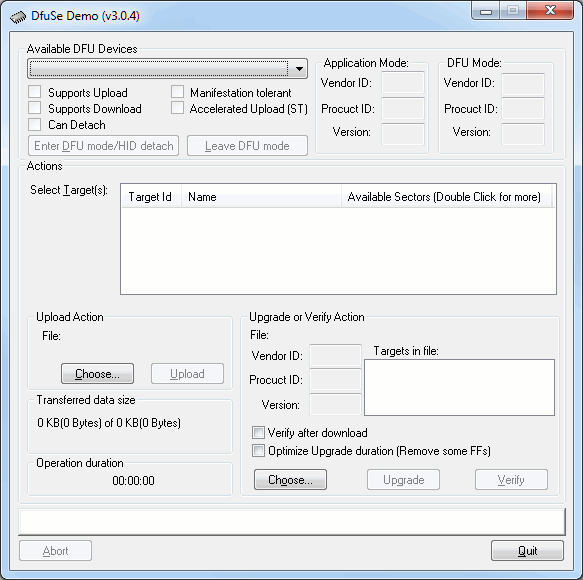
- Install the DFU Demo before connecting your controller to the PC. Run the DFU Demo and you’ll see this:
- Install the PGM link on your controller, then apply power and connect it to your PC. (If you’re using the EC1, holding the button down when connecting USB will enter download mode) The DFU Demo will now show an available device:
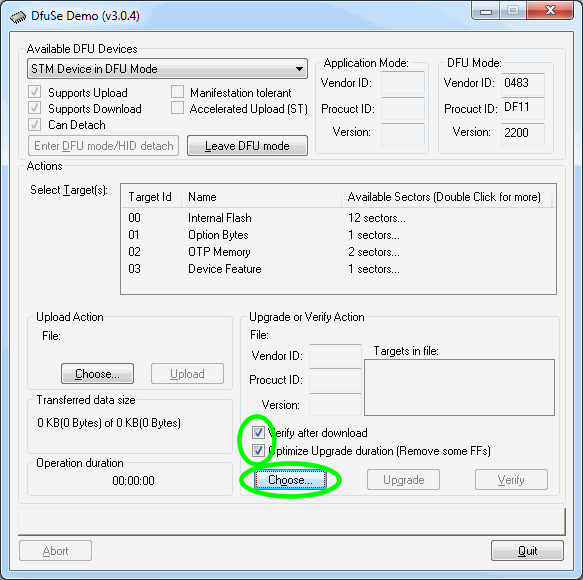
- Tick the boxes as shown, the click Choose and select the controller firmware file you downloaded above.
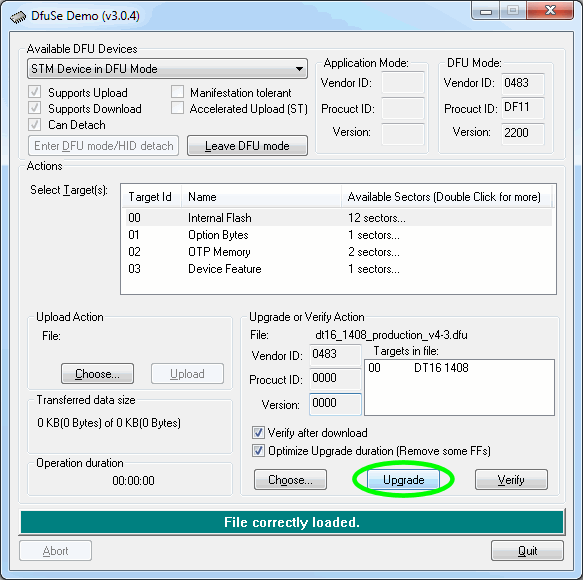
- Now click Upgrade:
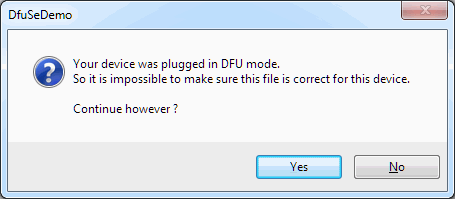
- If you see this popup below, click Yes then wait about 30 seconds. Sadly there’s a bug in the downloader and it will crash if you don’t wait for a bit. If you hear the USB boing bong sound, you’re good to proceed to the next step.
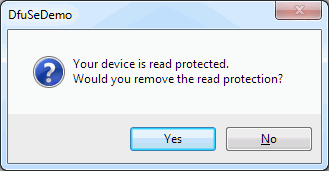
- Just say Yes. (But if you saw the read protected popup, be sure to wait about 30 seconds before clicking Yes.)
- Now the new firmware will be uploaded and at the end you’ll see this
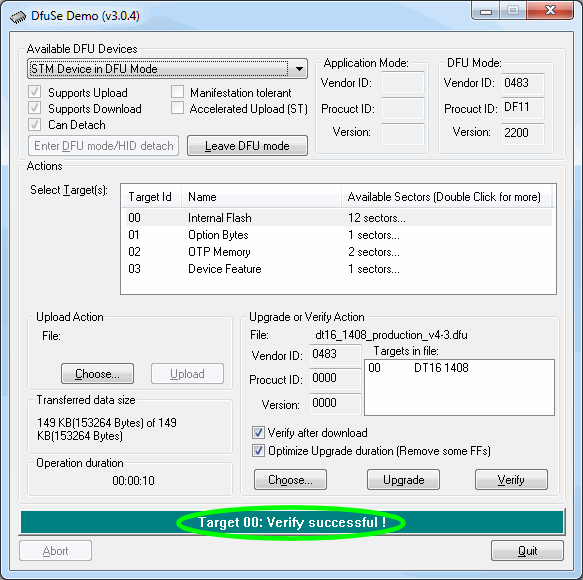
- All done. Remove the jumper and USB cable, then power cycle your controller. You’ll need to reinstall your SPLat application.
Please be sure to tick the “Verify after download” and “Optimize Upgrade duration” checkboxes before upgrading the firmware
If you’re not sure what you want, give us a call: +61 3 9773 5082