dr240
1. Download SPLat Firmware
=================
== Version 4.4 ==
=================
dr240_1502_release_v4-4
12 Sep 2016
- VM: fixed a serious bug in fSTTimeSince & STTest that 2 days after the controller is turned on made both functions think the elapsed time is always greater than 167772.16s.
- ARM: The SPLat/VM on ARM boards was throwing a RAM OutOfBounds error when trying to access byte 250 which is actually the legal last address.
- VM: Doing a fGetTimer or Test quickly after starting a timer may sometimes have caused the timer to expire immediately.
- VM: WtoU, QtoU, UtoW, UtoQ, fixToU, floatFromU, would incorrectly error when loading a float into U[16+]

=================
== Version 4.3 ==
=================
09 May 2016
- DR240: new SEXI app doubles performance.
- VM: WaitOnKT wasn't working (incorrect opcode length)
- DR240, DR8: updates for new OD had broken the status LED
- VM: GoIfInOn/Off/K were ignoring "J"
- VM: Fixed STTest which was not working correctly due to a typo.  It was especially worse with small delays.
- VM: NVReadRec & NVWriteRec were incorrectly expecting a 16 bit address but it's only an 8 bit address.
- DR240: now using generic bi-LED driver
- VM: A change to detect duplicated slave entries in the Xwire table was preventing correct parsing of the table, meaning slaves often weren't being added to the I/O map.
- OS: Saw the 1 second timer getting delayed, manifested by ComTestStartTimer taking 13 seconds dignal rather than 10.  Due to timers being deleted before the next timer was fetched.
- VM: ComTestStartTimer now using fast tick to avoid expiring after 9 - 10 seconds (only following RUN from SPLat/PC, power on was always 10s).
- VM: XwireGetPollCntr now increments as soon as a packet is received rather than at the start of sending the response, this also fixed a problem where poll count was not incrementing if the slave had no data to return; interpacket time delays have been shortend to increase throughput.
- VM: Fixed display of PermStore values in the "Module" window in SPLat/PC as all bytes were off by 1, thus the first byte was always missing and the "status" was never correct.
- VM: the Xwire LCD master now sends zeroes for the command bytes (blink, etc) otherwise sending these bytes sent garbage and stuffed up the LCD.
- VM: SEXI was not working when analogue I/O didn't start at 0
- OS: On ST micros, quadrature is now always 24bit even for 16 bit timers.
- ST quadrature now leves the pullup and drive modes unaltered
- OS: analogue output number is now contigous as there would have been problem if a DAC was in the middle of PWM
- VM: now able to report analogue I/O when numbering doesn't start at 0

=================
== Version 4.2 ==
=================
27 Jan 2016
- DR240: SEXI app was always using address 0 as it needed a delay before reading the DIP switches
- VM: low speed digital (OBCB) counting now works on ARM controllers.
- SPLatVM: SEXI was not turning off blinking outputs when SPLat/PC connected
- SEXI: a duplicate slave entry in the Xwire table now doesn't incorrectly increase the nof I/O's;
- VM: More than 10 analogues, in or out, are now correctly sent to SPLat/PC.

=================
== Version 4.1 ==
=================
23 Sep 2015
- DR240: enabled read protection
- DR240: Adjust COM port assignment, now TTL is 251, 485 is 252 and USB is 253
- VM: Now ensure countdown timers are cleared on VM reset
- VM: loss of SPLat/PC will now stop I/O update messages from being sent.

=================
== Version 4.0 ==
=================
07 Aug 2015
- First release
2. Download STMicro DFU Demo
Download then install the STMicro DFU “demo” making sure you unstall any old version first. This tool will upload the firmware to your SPLat controller. You will need a USB Type-A to Mini-B cable.
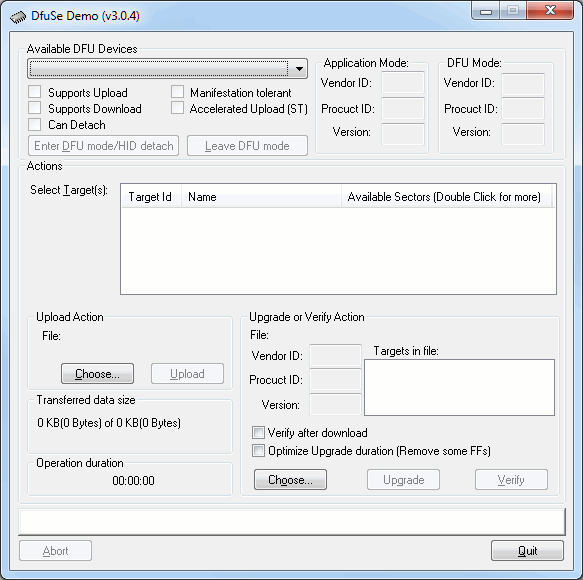
- Install the DFU Demo before connecting your controller to the PC. Run the DFU Demo and you’ll see this:
- Install the PGM link on your controller, then apply power and connect it to your PC. (If you’re using the EC1, holding the button down when connecting USB will enter download mode) The DFU Demo will now show an available device:
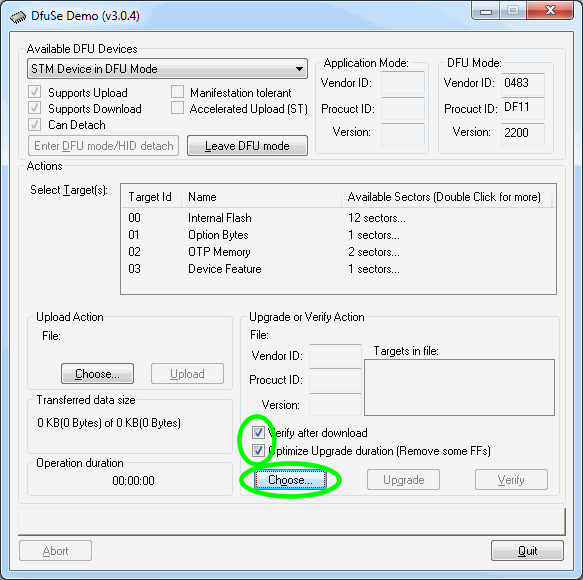
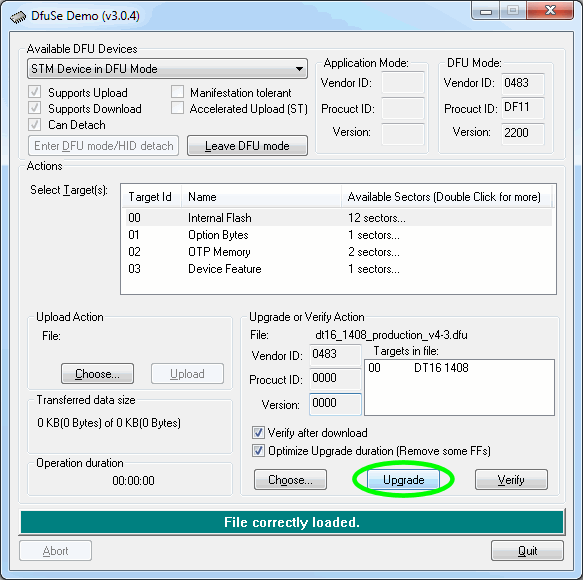
- Tick the boxes as shown, the click Choose and select the controller firmware file you downloaded above.
- Now click Upgrade:
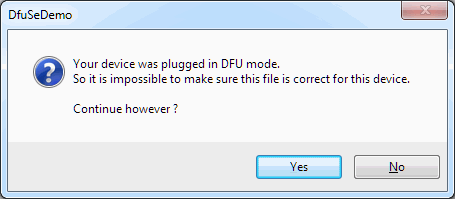
- If you see this popup below, click Yes then wait about 30 seconds. Sadly there’s a bug in the downloader and it will crash if you don’t wait for a bit. If you hear the USB boing bong sound, you’re good to proceed to the next step.
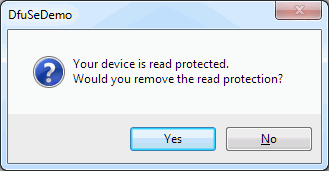
- Just say Yes. (But if you saw the read protected popup, be sure to wait about 30 seconds before clicking Yes.)
- Now the new firmware will be uploaded and at the end you’ll see this
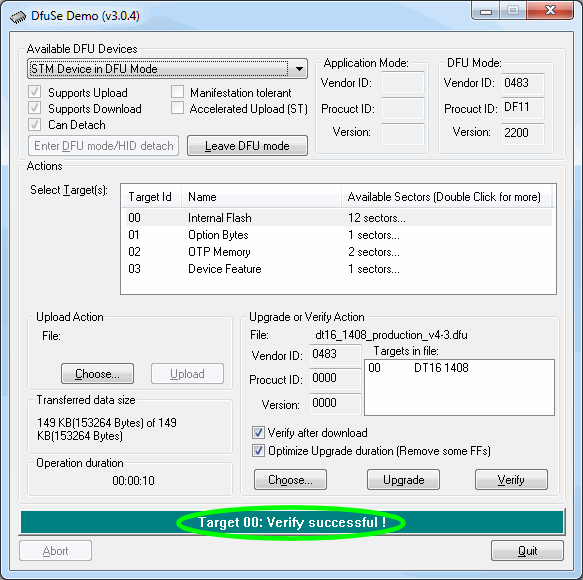
- All done. Remove the jumper and USB cable, then power cycle your controller. You’ll need to reinstall your SPLat application.
Please be sure to tick the “Verify after download” and “Optimize Upgrade duration” checkboxes before upgrading the firmware
If you’re not sure what you want, give us a call: +61 3 9773 5082