dts2
1. Download SPLat Firmware
DTS2
A DIN-rail mounted device that can read either two thermocouples or two RTDs.

==================
== Version 4.10 ==
==================
29 April 2021
- Normal version without the Frank Cerberos specialisation.

=================
== Version 4.9 ==
=================
29 April 2021
- Special version for Frank Cerberos
- Added new flag to ensure reading thread does not start until initialisation is complete.
- Added delays before starting conversion.
- Changed thread structure to provide separate threads for thermocouples or RTDs, rather than dynamically switching between them.
- Changed RTD code from Automatic (continuous) conversion to repeated One-Shot mode.

=================
== Version 4.8 ==
=================
26 March 2021
- Special version for Frank Cerberos
- Reverted reference resistor to 422.0 ohms because that's what his version of the code has.
- Re-built to include Modbus code (with modifications to Keith's original for the updated I/O map)

=================
== Version 4.7 ==
=================
25 March 2021
- Reverted reference resistor to 402.0 ohms because that's what the design is intended for.
- Removed 1K dummy output as that's all done with hardware now and is transparent to software.
- Modified SEXI code to not try to output to the now-gone 1K dummy output.
- Fixed temperature randomness by adding post-SPI packet delay.

=================
== Version 4.6 ==
=================
18 March 2021
- Changed reference resistor (temporarily) to 422.0 ohms because that's what we have that's close to the recommended value.
- Will change back to 402 ohms when they become available.
- Modified short-circuit and open-circuit thresholds to suit the real measurements.
- Changed DAC Output to disable the buffer

=================
== Version 4.5 ==
=================
11 February 2021
- Removed the Chip Select outputs from SPLat visibility.
- Removed red and green LEDs from SEXI access.
- Improved fault detection, spefically changing it for PT100/PT1000
- Improved the calculations for PT1000

=================
== Version 4.4 ==
=================
25 January 2021
- Implemented Thermocouple reading code
- Added Dummy Analogue inputs for measured and internal temperatures
- Added Dummy Digital inputs for errors.
- Implemented HMI430 test code.
- Implemented RTD reading code
- Added Dummy Digital Outputs for RTD control (50/60Hz filter selection and PT100/PT1000 selection)
- Updated Production Test to actually test the temperature inputs.

=================
== Version 4.3 ==
=================
23 September 2020
- Added pull-ups to iTS1Ready and iTS2Ready so they will work correctly.
- Separated LED operation because it's not bi-colour.
- Modified SPxMode operation so it overrides the automatic rising/falling edge selection.

=================
== Version 4.2 ==
=================
23 September 2020
- Corrected semaphore access during the start-up procedure, which was stopping other functions from starting.
- Updated production test to correct number of BIO pins.
- Added automatic 3V3 trimming in production test.

=================
== Version 4.1 ==
=================
22 September 2020
- Took Pin A10 out of the Unused I/O listing because that breaks the USB.
- Updated Production Test and SEXI splat code to correlate with the actual I/O map.

=================
== Version 4.0 ==
=================
21 September 2020
- First cut.
2. Download STMicro DFU Demo
Download then install the STMicro DFU “demo” making sure you unstall any old version first. This tool will upload the firmware to your SPLat controller. You will need a USB Type-A to Mini-B cable.
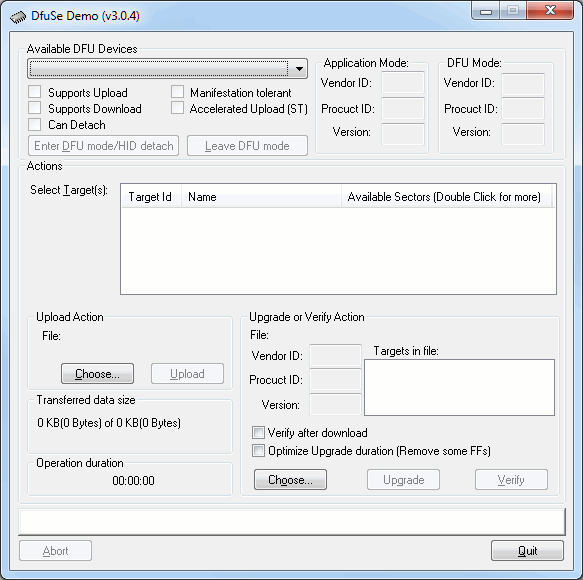
- Install the DFU Demo before connecting your controller to the PC. Run the DFU Demo and you’ll see this:
- Install the PGM link on your controller, then apply power and connect it to your PC. (If you’re using the EC1, holding the button down when connecting USB will enter download mode) The DFU Demo will now show an available device:
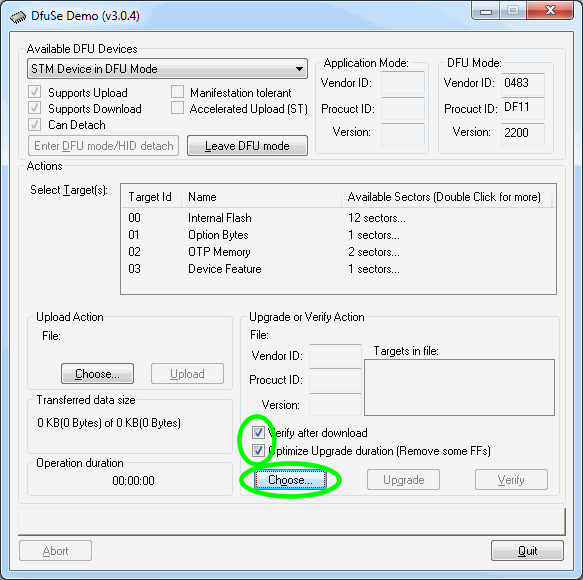
- Tick the boxes as shown, the click Choose and select the controller firmware file you downloaded above.
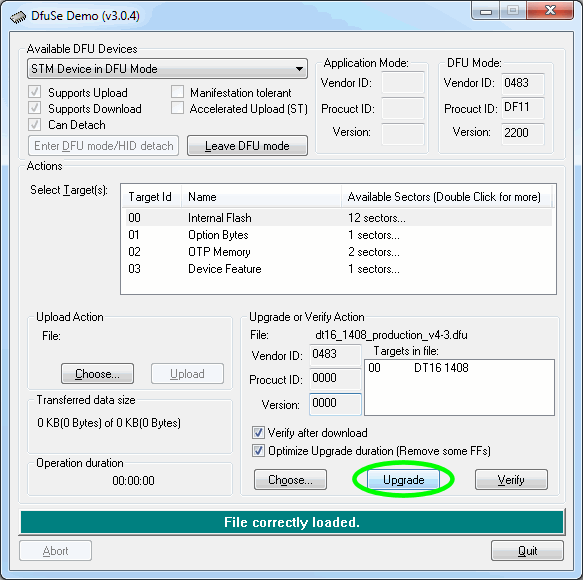
- Now click Upgrade:
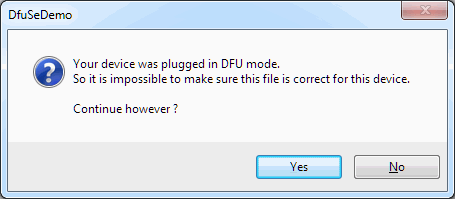
- If you see this popup below, click Yes then wait about 30 seconds. Sadly there’s a bug in the downloader and it will crash if you don’t wait for a bit. If you hear the USB boing bong sound, you’re good to proceed to the next step.
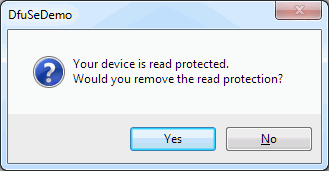
- Just say Yes. (But if you saw the read protected popup, be sure to wait about 30 seconds before clicking Yes.)
- Now the new firmware will be uploaded and at the end you’ll see this
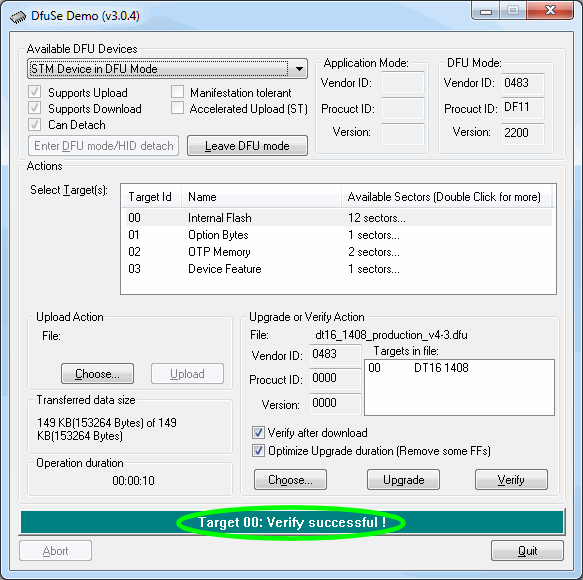
- All done. Remove the jumper and USB cable, then power cycle your controller. You’ll need to reinstall your SPLat application.
Please be sure to tick the “Verify after download” and “Optimize Upgrade duration” checkboxes before upgrading the firmware
If you’re not sure what you want, give us a call: +61 3 9773 5082