# HBarOld(Row, Col, Height, FSWidth, fArg) hash function
This was originally named HBar. It has been re-named HBarOld to make room for a shiny newer version. Deprecated: DO NOT USE FOR NEW PROGRAMS
Valid for use with hash command: HMI
This function will draw one bar of a horizontal bar graph. This is useful for indicating analog values graphically.
The parameters are:
Row | The screen row where the top of the bar is to be positioned. This refers to character rows in the default font size. Row numbers are 0 based, so the top row is row 0. |
Col | The screen position where the left of the bar is to be positioned. This refers to character columns in the default font size. Column numbers are 0 based, so the start of each line is 0. See the table below for more detail. |
Height | The height of the bar. See the table below for more detail. |
FSWidth | The full scale width of the bar. This is the screen width that will be occupied by the maximum fArg value’ |
fArg | The name of a floating point variable containing the value to be plotted. Must be between 0.0 and 1.0 |
The bar is drawn by drawing a rectangle in the current background colour, then on top of that drawing a left-justified rectangle in the current foreground colour whose horizontal length is FSWidth * fArg. fArg should lie in the range 0.0 to 1.0.
In addition to being simple numbers, the row/column coordinates may also be specified in relative or proportional terms. The following table illustrates the possibilities.
| Format (example) | As a row specifier | As a column specifier |
|---|---|---|
5 | Row number 5 from the top, counting from 0. This can be a fractional number such as 5.5 | Column number 5 from the left, counting from 0 |
-5 | Row 5 from the bottom, counting from 0. This can be a fractional number such as -5.25 | Column 5 from the right, counting from 0 |
0 | The top character row | The left-most character column |
-0 | The bottom character row | The right-most character column |
0.25 | One quarter of (0.25 times) the screen height from the top. Fractional number between -1 and +1 are interpreted as a fraction of the screen. | One quarter of the screen width from the left. |
-0.25 | One quarter of the screen height from the bottom. | One quarter of the screen width from the right. |
C | The top-bottom centre of the screen. | The left-right centre of the screen. |
C+5 | Five character rows down from the centre | Five character widths right from the centre. |
C-5 | Five character rows up from the centre | Five character width left from the centre. |
C+.25 | One quarter character row down from the centre. After a “C” all numbers are interpreted as multiples of the character pitch. | One quarter character width right from the centre. |
C-3.25 | Three and a quarter character rows up from the centre. After a “C” all numbers are interpreted as multiples of the character pitch. | Three and a quarter character widths left from the centre. |
In addition to being simple numbers, the width and height coordinates may also be specified in relative or proportional terms. The following table illustrates the possibilities.
| Format (example) | As a height specifier | As a width specifier |
|---|---|---|
5 | 5 character rows in height | 5 character rows in width |
0.25 | One quarter of (0.25 times) the screen height. Always calculated as a full number of rows, always rounded down, but forced to be at least 1. | One quarter of (0.25 times) the screen width. Always calculated as a full number of columns, always rounded down, but forced to be at least 1. |
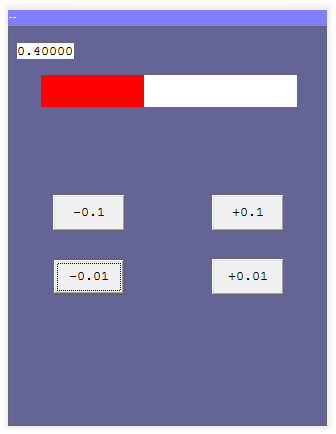
Example. The following program will produce the result shown below. The bar is drawn with a red foreground and white background. The buttons can be used to change the bar length:
(Click here for some tips for working around problems with copy and paste out of Internet Explorer and HTML-help (.chm) files)
;Demonstrate HbarOld hash function
#       Open_Serial User(38400,8,N)
# HMI ConnectEvent(HMI_Connected)
        GoSub           HMI_Connected
        fLoadW          0.4            ;An initial value for the bar
        fStore          fHValue
        LaunchTask      Test
        RunTasksForever

fHValue defFLOAT
;---------------------------------------------------------------
Test:
        Pause           20
# HMI SetBGColour(255,255,255) SetFGColour(255,0,0)
# HMI HBarOld(3,4,2,32,fHValue)
# HMI SetFGColour(0,0,0) Cursor(1,1) floatVar(fHvalue,7,6)
        GoTo            Test
;---------------------------------------------------------------
;Button Event handlers. Let the user change the value plotted
EvMinusP01:
        fLoadQ          -0.01
        GoTo            ChangeVal
EvPlusP01:
        fLoadQ          0.01
        GoTo            ChangeVal
EvPlusP1:
        fLoadQ          0.1
        GoTo            ChangeVal
EvMinusP1:
        fLoadQ          -0.1
ChangeVal:
        fRecallW        fHValue
        fAdd
        fStore          fHValue
        Return
;---------------------------------------------------------------
;Connect Event (and startup)
HMI_Connected:
# HMI Reset() HideAllButtons() SetBGColour(100,100,150) Cls()    ;Blue screen
# HMI ButtonEvent(,10,5,3,10,"-0.1",EvMinusP1)         ;Buttons to alter value
# HMI ButtonEvent(,10,25,3,10,"+0.1",EvPlusP1)
# HMI ButtonEvent(,14,5,3,10,"-0.01",EvMinusP01)
# HMI ButtonEvent(,14,25,3,10,"+0.01",EvPlusP01)
         Return