HMI – Button and Output Examples
You may be wondering how to make an on screen button directly control an output.
Simplest Example
Here’s an example where a button will directly toggle output 0:
HUEkDarkGray   #EQU  'FF202020            ;create a named colour

   ;draw some text and a button
   #HMI        Print( "Output Toggle" )
   #HMI        ButtonEvent2( x:0, y:1, w:10, h:3, t:"Toggle", rb:HUEkDarkGray, ev:subBtnToggle )

   ;start multitasking (required for button events)
   RunTasksForever


   ;this subroutine is called when the button is pressed
subBtnToggle:
   InputO      0                          ;read back the output pin
   Not                                    ;invert it
   Output      0                          ;write the inverted value
   Return                                 ;finished handling the button
Using Button Info
Let’s get a little more creative, this time we’ll make the button toggle and have the button’s state directly drive the output. For this to work, you’ll need to include this splat file in your build:
Calling UIsubGetButton returns info on the button action, so we’ll use the button’s state to control the output:
COMHMI         EQU   251                  ;number of the HMI virtual serial port (required by ui_utils.spt)

HUEkOff        #EQU  'FF202020            ;off is dark gray
HUEkOn         #EQU  'FF0080FF            ;on is sky blue

   ;draw some text and a button
   #HMI        Print( "Output Toggle" )
   #HMI        ButtonEvent2( x:0, y:1, w:10, h:3, m:"t", t:"Toggle", rb:HUEkOff, pb:HUEkOn, ev:subBtnToggle )

   ;start multitasking (required for button events)
   RunTasksForever


   ;this subroutine is called when the button is pressed
subBtnToggle:
   GoSub       UIsubGetButton             ;get extra info on the button action
   Output      0                          ;X holds the press/release value, so write it directly to the output
   Return                                 ;finished handling the button


;subroutines required by ui_utils.spt (both are unused in this example)
UIsubBacklightEvent:
UIsubRedrawAfterCal:
   Return

;include the ui_utils.spt file which provides a routine for getting extra info on the button action
#include file( "ui_utils.spt" )
For the Brave
Ok, let’s go all out and create a button for each output (both the HMI430 and HMI700 have 8 digital I/O lines built-in). I’m lazy, so instead of typing 8 ButtonEvent2 instructions, I’ll create the 8 buttons in a loop. Here’s how the screen looks (BTW, screen shots are easy, just drag ‘n drop the sshotNNN.png file from the Computer\HMI430\Internal Storage directory):
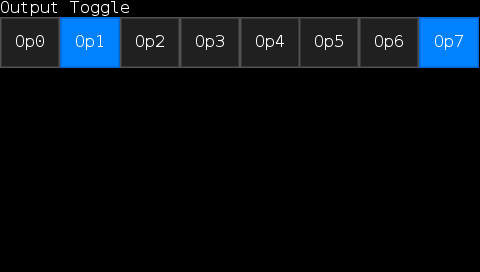
The “v:”alue parameter will hold the output number so we can use the same button subroutine to control all 8 outputs.
COMHMI         EQU   251                  ;number of the HMI virtual serial port (required by ui_utils.spt)

HUEkOff        #EQU  'FF202020            ;off is dark gray
HUEkOn         #EQU  'FF0080FF            ;on is sky blue

   ;draw some text and buttons
   #HMI        Print( "Output Toggle" )
   LoadI       0                                      ;use the i reg for the output number
_Loop
   ItoX                                               ;get the index reg
   float                                              ;convert to float (into W register)
   fLoadQ      12.5                                   ;calc the..
   fMul                                               ;..horizontal position (8 buttons @ 12.5% = 100%)
   ;w is the horiz pos, q is the width, i is the output number we put into "v:" and display via "t:"
   #HMI        ButtonEvent2( x:(f(=w), "%"), y:1, w:(f(=q), "%"), h:3, v:b(=i), m:"t", t:( "Op", b(=i) ), rb:HUEkOff, pb:HUEkOn, ev:subBtnToggle )
   IncI                                               ;next output
   ItoX                                               ;get the i register
   GoIfXlt     8,_Loop                                ;loop over until all 8 output buttons are created

   ;start multitasking (required for button events)
   RunTasksForever


   ;this subroutine is called when a button is pressed
subBtnToggle:
   GoSub       UIsubGetButton             ;get extra info on the button action
   fix                                    ;"v:" is the output pin, put into x
   XtoI                                   ;then move into i so we can index the output
   iOutput     0                          ;X holds the press/release value, so write it directly to the "i"ndexed output (output = i + 0)
   Return                                 ;finished handling the button


;subroutines required by ui_utils.spt (both are unused in this example)
UIsubBacklightEvent:
UIsubRedrawAfterCal:
   Return

;include the ui_utils.spt file which provides a routine for getting extra info on the button action
#include file( "ui_utils.spt" )