# PrintOBLCD()
| Valid For | #HMI |
|---|---|
| Applies To | HMI430 |
Displays OBLCD text using the current font, starting from the current cursor position and within the current bounds. OBLCD text may either have been printed locally (using OBLCD_Text and other instructions) or may have been received via Xwire if the HMI430 is a Xwire slave.
Function prototype
iiPrintText    COMHMI,'1,"g",'3                    ;print OBLCD text
or
iiPrintText    COMHMI,'1,"g","r",'3                ;refresh OBLCD text
Note SPLat/PC doesn’t currently recognise this instruction, hence iiPrintText must be used to send the instruction to the SimpleHMI engine.
Description
The OnBoard LCD (OBLCD) is the interface to the character LCD that is used on many SPLat controllers.
Controllers like the UI216 & UI420 can receive and display OBLCD characters from a remote master controller via Xwire. So you may have a CC18 (that has no display) and connect a UI216 to it to allow the CC18 to have a display.
The HMI controllers can also act as OBLCD slaves, meaning they can receive OBLCD characters from a master controller and display them anywhere on the colour LCD.
“Printing” the OBLCD will always display all the characters, while “Refreshing” will only print the screen if characters have changed. As refreshing is very fast if nothing has changed, this is what’s usually done in the loop.
Example
This example displays OBLCD text using colours similiar to a non-backlit LCD.
HUEkLCDBackground    #EQU  'ffaae000
HUEkLCDForeground    #EQU  'ff101010

   #HMI           SetFont( "mono35.fon" )
   #HMI           SetBounds( x:c-10, y:0, w:20, h:4 )
   #HMI           SetColours( f:HUEkLCDForeground, b:HUEkLCDBackground )
   iiPrintText    COMHMI,'1,"g",'3                    ;print OBLCD text
   #HMI           SetBounds()
Here’s what the screen looks like:
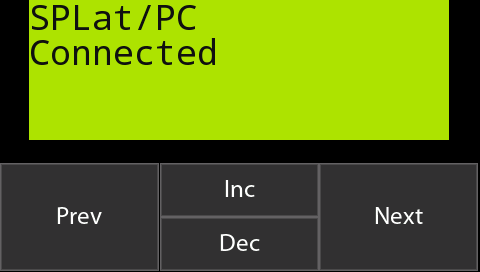
This has been taken from a HMI430 displaying a 20×4 LCD with buttons.