PIDassist: The controller
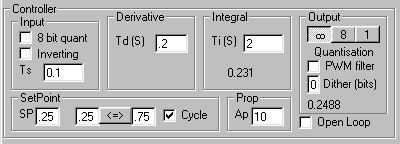
The controller function in PIDassist closely reflects the sample SPLat code we have provide you with. Several of the parameters in this pane are also discussed under PID theory: The control model
Input pane.
Ts. This is the sampling time, how often the program will take a reading from the process output and do a set of PID calculations. You should set this to some multiple of 0.01s (10mS), because that is the basic timing capability of a SPLat. The PID calculations take about 3.5mS in SPLat, so with a 10mS sampling time you will use up 35% of the boards calculating capacity (these numbers are for generation boards like MMi200 and SL99. The 1st generation OEM36 is about 8 times slower).
PIDassist uses Ts to calculate constants to use for many other parameters. That means you can change Ts without needing to re-enter other parameters. If you see any change in the results when you change Ts, it is because of errors result from the sampling process itself.
8 bit quant When you have this checked. PIDassist will simulate the effect of 8-bit input resolution (quantisation). The input number range is 0 to 1. With input quantisation turned on the input number is coerced to the nearest multiple of 1/256. The accuracy of the controller is limited to this resolution.
Inverting. When you have this checked the input is inverted. That means instead of an increasing input being interpreted as the process output increasing, it is taken to mean the process output is decreasing. What actually happens is that the input from the process is subtracted for 1.
Note: Your process is “inverting” if its outputs will decrease for an increasing control input. If that is the case you should use inverting in the controller simulator. That will ensure that when you come to run PID code in a SPLat board it will operate correctly (our boiler plate programs and the code generator in PIDassist know about inversion). However, you must manually set up the process simulator to invert be using a negative gain value and an output offset (typically of 1).
Derivative pane
Derivative time Td. This sets the amount of derivative used. The higher this value the greater the amount of derivative is applied. Specifically, higher derivative time increases the extent to which slower moving signals are included in derivative effect.
The Derivative Gain factor Ad is internally set to a value of 4.
Integral pane
Integral time Ti. This is the integral time. The LOWER the value, the greater the amount of integral applied. If this is set to, for example, 10 seconds, then with a steady 5% error between control variable and setpoint, the controller output will ramp at 5% every 10 seconds – and keep on ramping all the way to its maximum or minimum limit as long as the error remains.
Prop pane
Ap. This is the proportional gain. Higher values mean more proportional action.
Output pane
Quantisation = Infinite. If you select this PIDassist will not apply any output quantisation. This is not something that can be achieved in the real world with a digital controller. However, it is useful to use infinite resolution during tuning, so you can get
Quantisation = 8 bit . Enabling this makes the PIDassist program emulate the effect of 8 bit output resolution (quantisation) in a SPLat board, which would be typically the case if you are using an analog output. The output number range for the simulator is 0 to 1. With output quantisation turned on the output number is coerced to the nearest multiple of 1/256. The effect of output quantisation is usually that the output will “hunt” between two values so as to average out at the value needed to keep the process at the setpoint. This in turn may lead to a small amount of jitter in the process output.
Quantisation = 1 bit. A 1-bit output means the output switches on or off, but cannot be anywhere in between. This would be the case with for instance a heater driven off a relay.
PWM filter. In second generation SPLat boards like MMi200 and SL99, the analog output is implemented using a pulse width modulator (PWM) and a low pass filter. The PWM produces a 0V or 5V on/off rectangular wave that has a duty cycle (ratio between on time and total period) proportional to the required analog output. This is passed through a simple low pass filter R-C with a time constant of 100mS. PWM filter enables emulation of this filter. You only need to bother with this is you are using a sampling time less than 100mS and the process has time constants down in that range.
Dither (bits). Dithering is a technique of deliberately adding a small amount of noise to a quantised signal in order to give an apparent improvement in resolution. In PIDassist and the sample SPLat programs, dithering is added by a cyclic counter of 1, 2, 4 or 5 bits. This counter is incremented once per sample interval, scaled back to a total range of one LSB, then added to the output just before quantisation. If the sampling time is considerably shorter than the dominant time constant in the process, this can be quite effective. The dithering will add periodic noise to the controller output, but if the process is much slower it won’t show up in the output (naturally it’s up to you to be sure there is not bad effect further upstream, like wearing out a control valve due to excessive to and fro).
Number. The number in this pane is the controller output.
Note: In open loop mode the output quantisation is inactive.
Setpoint pane
SP. This is the actual setpoint, the magic number we want out of our process.
Other controls. The two other windows, and the button in between, let you set up two alternative setpoints and toggle between them. The one on the left should be the lower of the two or it may not work. The cycle check box turns on automatic cycling between the two setpoints every 5 divisions of the display. Changing the setpoint and observing the behaviour of the control system is a common way of testing. This automatic setpoint toggling works even when the control is taking place in a SPLat board hooked up to a real process. What with this and data logging you can have automatic unattended testing for slow processes … providing you take appropriate safety precautions!
Open Loop checkbox
The Open Loop checkbox switches the simulation to open loop mode. In open loop the setpoint is sent directly to the process. This is done to allow you to investigate the step response of the simulated process.