# SetImagePath(PathName)
Sets the file path (folder) in the display device where image files will be taken from.
Implemented on the following platforms: Android
The PathName must the the folder name relative to the top level (root) of the device’s “external” storage, which generally means a plug-in SD card. In Android devices, when you connect to a PC via USB, and open the device for file transfers, that is where you end up.
If your program accesses images, but you don’t specify a path, the default path will be used. The default path is SimpleHMI/appimages.
Note: Path and file names in Android are case-sensitive
This is what the file path looks like in Windows 7 Explorer on a Nexus 4 ‘phone running Android 4.4.4. …
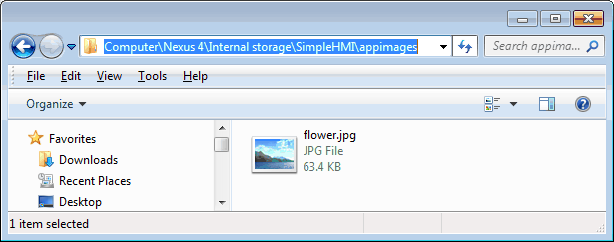
The Nexus 4 doesn’t have external storage, i.e. a plug-in SD card.
… and this is what it looks like on an older HTC Desire C running Android 4.0.3 …
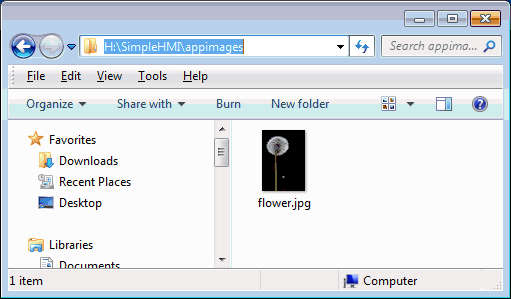
This ‘phone actually appears in My Computer as two “drives” when “mounted as a disk drive”. The lefthand one in the image below is the phone’s internal storage. The one we want is the righthand one, which represents a plugged in SD card.

Clearly you will need to explore accessing files on your device via a USB connection to you computer. If you use pictures taken on the phone, you may have some success creating and manipulating folders using an Android app like ES File Explorer.
We can not provide support on how to use Android.
Example:
#HMI SetImagePath("myappfiles/images") ;No leading or trailing slashes!
Just to re-state what’s above: Setting the path makes sense only when the path exists on the Android device and contains the desired image file(s)
See also: Reset(BGImage)